Before you begin
When you open the app, you see the script library. From here you can create, import, search, sort, edit, play or share every script.
Permissions. Camera access is needed to record or take photos; microphone and speech-recognition access are needed for the features that use them; Photos access is needed to save or choose media; and iCloud access is needed if sync is enabled. You can review denied permissions in iOS Settings.
Availability. Some options are available only in particular app editions or plans. If you see an upgrade prompt, that feature is not included in your current edition.
Your first video in a few steps
- In the library, tap New and choose to create a script, or use Import to start from a document.
- Enter a title and your text, then save the script.
- Select the script in the list and tap Play.
- In the teleprompter, adjust the speed and tap Play/Pause to rehearse.
- Enable Video, check the framing and tap Record. Tap it again to finish.
- Open the gallery, select the video and use Share or the editing tools before exporting it.
Script library
Create or import
The New button opens a menu to create an empty script or import a file. Import supports PDF, RTF, plain text, DOC and DOCX. When finished, review the imported text in the editor, especially line breaks and formatting.
Find and organise
Use search to filter by name. The sort button lets you sort alphabetically, by creation date or manually; when using manual sorting, reorder the items in the list.
Actions for a script
Select a script to make it active. Its controls or context menu let you open it in the editor, play it, adjust its individual speed, export its content, generate captions, view related videos or delete it. Swipe a row to delete it; this removes the script and its associated index.
Automatic and less visible features
Create a script from copied text
To quickly turn text from another app into a script, go to Settings › Other and enable copied-text detection. Then copy text in any app and return to the library. The copied-text button appears; tap it, review the preview and confirm. The app creates a new script with the date and time in its name, applies your favourite font style and adds it to the library. Important: when starting this action, the app clears the clipboard to prevent duplicates; paste or save the text elsewhere first if you still need it.
iCloud script sync
In Settings › Other, enable iCloud Sync. The app exchanges scripts and their indexes between local storage and the iCloud container, and shows an indicator while it works. The initial sync combines files without deleting local items just because a remote copy is missing. When two versions exist, the most recent one is kept. Wait for the indicator to finish before closing the app or switching devices.
Biometric access
From the same section, you can protect access to the library with Face ID or Touch ID if your device supports and is set up for it. If authentication fails or is cancelled, follow the alternative method offered by iOS.
Default speed and style
The global speed, favourite font style and background colour are used as starting points for new scripts. You can also assign a script-specific speed from the library; it overrides the general speed when that script is played.
Linked captions
When generated, captions are stored in an .srt file with the same name as the video. You can therefore export video and captions together, or create another video copy with the captions already burned in.
Script editor
Use the editor to prepare text before reading it. You can change the title, type or paste text, select all, and undo or redo changes. The word count and time estimate help you adapt the script to the intended duration.
From the editor menu you can apply a favourite font configuration, change the background, adjust speed and line spacing, and show or hide the index. Save before leaving. You can also quickly edit a script from the teleprompter: pause, enable editing, make the change and end editing to save it.
Using the teleprompter
Reading
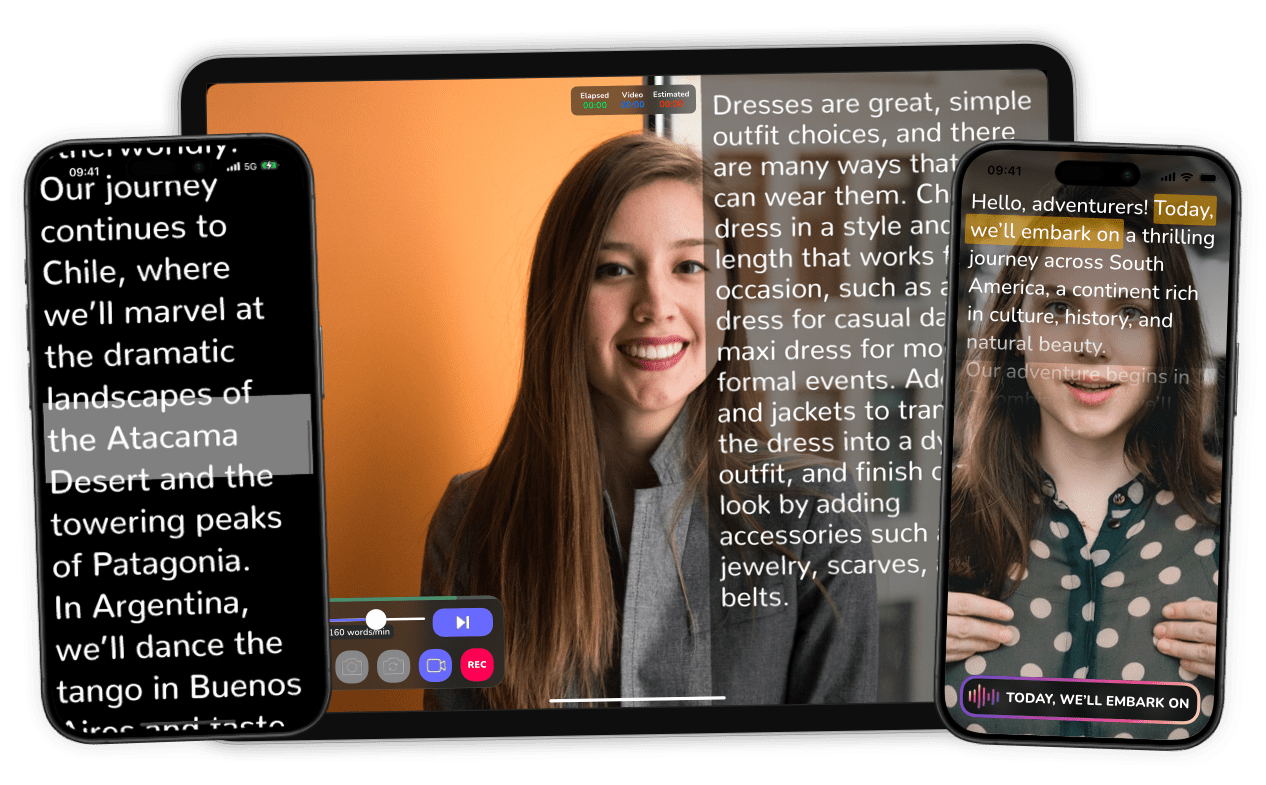
Open the active script with Play. The main control starts or pauses scrolling. Use the speed slider to find a comfortable pace; it is normally expressed in words per minute. You can restart the text and move the reading position manually.
Controls while reading
The menu lets you show or hide controls, open settings, change text size, show a reading guide, enable mirror mode, show the index, and move to the next or previous script. Mirror mode is useful with a teleprompter glass rig. Controls that would affect the take cannot be changed while recording.
Start and assisted reading
If a countdown is configured, you can activate it before starting. The app also offers speech recognition and a stop-on-silence option when enabled and permissions have been granted. These options help follow the speaker’s pace.
Remote control
The app can receive commands from Apple Watch, a Bluetooth keyboard or the compatible remote app. Find connection instructions in More › Remote Control. Keep devices connected before beginning your read.
Recording with the camera
Inside the teleprompter, tap Video to display the camera beside the text. Check the selected camera, video-area size and overlay; then use the record button to start and stop the take. The photo button captures an image. When recording stops, the video is available in the gallery and, if configured, is also saved to Photos.
There is also a standalone video camera on the main screen. It lets you record without a script and apply available filters. For best results, keep the device steady, check lighting and sound, and do not close the recording screen until you finish.
The camera is unavailable in certain multitasking situations. If preview does not appear, close the app’s other windows and try again.
Gallery, editing and captions
Gallery and export
Open the gallery from the main screen to view created videos. Tap one to play it and access its actions: share, delete or edit the video. Export opens the iOS share sheet, where you can save, send or publish the file.
Editing
Depending on available tools, you can trim, add filters, change speed, add text or an image watermark, add stickers and transitions, or apply chroma key. Each tool provides a preview: adjust the values and confirm or save to generate the result.
Chroma-key background
In chroma-key editing, choose green or blue and select the background from the camera, photo library or Unsplash. You can capture an image of the result. To avoid uneven cut-outs, use a smooth, evenly lit background and avoid clothing of the same colour.
Captions
The app can generate captions for a video and lets you correct them in the editor. When sharing, you can export the video with its .srt file, or burn captions into the video by choosing a font size and confirming export. The SRT file keeps captions separate for platforms that support them.
Settings
| Section | What you can configure |
|---|---|
| Basic | Speed, countdown, background and guide colours, favourite font style, mirror mode, guide and its position, on-screen times, stop on silence and, where available, speech recognition and marker. |
| Video | Default camera, video mode, view and script size, overlay, resolution, auto-record, playback after recording, filter, saving to Photos, and caption generation/word count. |
| Chroma Key | Chroma-key activation, key colour, and the image or video used as a background. |
| Other | iCloud sync, biometric access, copied-text detection and reset settings. |
Changes affect following sessions and, in many cases, apply to the teleprompter as soon as you return to the reading screen. Use Reset Settings only when you want to return to the initial configuration.
Availability: Free and PRO
The following table is based on the edition restrictions implemented in the app. “Limited” means the feature exists but has a cap or a reduced set of options. The beta edition behaves as PRO for these features.
| Feature | Free | PRO |
|---|---|---|
| Create, edit, import and play scripts | Yes, with limits. | Yes, without those limits. |
| Saved scripts | Up to 5. | No edition limit. |
| Script length | Up to 300 words. | No edition limit. |
| Copied text → automatic script | Yes. | Yes. |
| Editor font and size | Reduced font and size selection. | Device fonts and complete formatting options. |
| Index, individual speed and line spacing | No. | Yes. |
| Mirror mode, guide and guide position | No. | Yes. |
| Countdown, stop on silence and adjustable script height/width | No. | Yes. |
| Speech recognition and background colour | Yes. | Yes. |
| Integrated teleprompter recording | Yes. | Yes. |
| Standalone video camera, photos and camera filters | No. | Yes. |
| Resolution, auto-record and play after recording | No. | Yes. |
| Select camera, video mode/size, overlay and save to Photos | Yes. | Yes. |
| Next/previous script and keyboard/remote control | No. | Yes. |
| Apple Watch and remote-control app | No. | Yes. |
| Video editing: speed and transitions | Yes. | Yes. |
| Video editing: effects, text and image watermark | No. | Yes. |
| Chroma key and background selection | No. | Yes. |
| Generate, edit and burn in captions | No. | Yes. |
| Export ZIP files (scripts, videos or captions) | No. | Yes. |
| iCloud script sync | No. | Yes. |
| Biometric access and reset settings | Yes. | Yes. |
Prices, promotions and commercial terms are not part of this guide. Check them in the app’s upgrade screen, as they may change.
More options and help
The More section collects additional features: choose the app icon, redeem codes, load historical speeches as a starting point, change language, view remote-control instructions, export a data copy, open the guide, contact support, rate the app, and review permissions or licences.
Deleting all data is irreversible from within the app. Before using it, export your scripts and videos or confirm that iCloud sync has finished.
Keyboard shortcuts and quick help
With a physical keyboard connected and the relevant features available in your edition, the teleprompter recognises these shortcuts:
| Key | Action |
|---|---|
| Space | Play or pause |
| ← / → | Decrease / increase speed |
| ↑ / ↓ | Scroll text |
| B / N | Previous / next script |
| V | Show or hide video |
| R | Record video |
| P | Take photo |
If something does not work
- I cannot record: check Camera and Microphone permissions, free space and that no other window is using the camera.
- A video is not saved or does not appear: wait for processing to finish and refresh the gallery. Also check Photos permission if saving to the camera roll is enabled.
- The text does not follow my voice: enable the feature in Settings, grant speech-recognition permission and try in a quiet environment.
- A control is locked: stop recording or close an upgrade prompt; some tools depend on the installed edition.